How to remove IP restriction
Prerequisites
- Access to a recovery email address or mobile number associated with your Zoho account in order to verify your identity.
- If you're an organization admin, and there's a domain added and verified with your Zoho organization, you can use it to verify as well.
- Able to complete MFA verification if your account is secured with MFA.
Steps to remove IP restriction
- Go to the Remove IP restriction page.
- Enter your email address or mobile number, then click Next.
- Enter the CAPTCHA, then click Next.
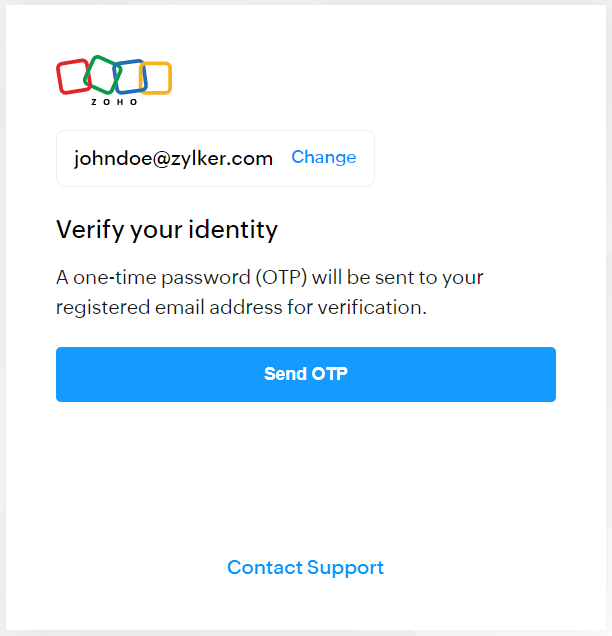
- Verify your identity using a recovery option you have configured for your account. For detailed instructions, refer below:
- Verify Using an OTP sent to email address
- Click Send OTP. It will be sent to the email address you initiated the request with. To verify using another email address that is added to your account, click View all options, then select the required one.
- If asked, enter the full email address to send OTP.
- Enter the received OTP, then click Verify.
- Verify Using an OTP sent to mobile number
- Click Send OTP. It will be sent to the mobile number you initiated the request with. To verify using another mobile number that is added to your account, click View all options, then select the required one.
- If asked, enter the full mobile number to send OTP.
- Enter the received OTP, then click Verify.
- Verify by proving the ownership of your domain
- Click View all options.
- If asked, click Verify via domain. Instructions will be shown.
- Go through the instructions, then click Proceed.
- If asked, select a domain to proceed with.
- Enter the full domain name, then click Next.
- Select one of the methods shown to prove domain ownership. The options are:
- Add a TXT record in your domain host.
- Add a CNAME record in your domain host.
- Upload a HTML file to the root directory of your website.
- Enter an email address to which you want to receive further instructions on how to prove domain ownership, then click Send Email.
- Follow the instructions in the email sent.
- Click the Remove IP Restriction link in the email. We will validate if the DNS record/HTML file is added.
- If it is added, a success message will be shown. You can continue with removing IP restriction.
If it is not added, an error message will be shown. It is possible that the record you’ve added hasn’t been propagated to all the DNS servers yet, as it depends on the TTL value. Wait for some time, then try refreshing the page.
- If you’ve enabled multi-factor authentication (MFA) for your account, complete the MFA verification to continue. However, if OneAuth is your only available MFA mode, you won’t be asked for MFA verification.
- Enter your new password and re-enter to confirm, then click Remove IP Restriction.
- You can remove IP restriction either for your account or for the users in your organization (if it is enforced).
- Remove IP restriction for your account
- Click Remove. If you’re asked to choose between two options, select Remove restriction only for my account.
- If you want to reconfigure the restriction:
- Click Reconfigure IP restriction.
- You will have three options, You can add your current IP address as allowed address, or you can enter another static IP address. Alternatively, you can also enter a range of IP addresses as allowed IP addresses.
- Click Next.
- Enter a name to identify the added IP addresses, then click Add.
- Click Continue to sign in.
- Remove IP restriction for your organization users
- Click Remove. If you’re asked to choose between two options, select Remove restriction for my organization users.
- If the restriction is configured by the Zoho support team and not yourself, you can also choose which group to remove or which specific IP addresses to remove. Select them, then click Remove Selected.
- If you want to re-enforce the restriction, enforce it using security policies from Zoho Directory or Zoho One, You can also enforce it via Zoho Cliq or Zoho Mail.
Related Articles
Managing Multiple CRM Organizations
Access multiple CRM accounts using one sign-in Zoho CRM allows users to access multiple organizational (CRM) accounts using the same email address. This is especially useful for organizations that maintain different CRM accounts to manage their ...
Add or reduce licenses
Zoho One allows you to modify your license plan at any point during your subscription period. You can add or reduce the number of users and switch between the available license plans on the Manage Subscription page. Role required: Org Owner in Zoho ...